
Welcome to Remote Connect by First Data Works.
Below is a user friendly guide with step-by-step instructions on how to get started in the Remote Connect system. There are images to clarify the instructions and helpful tips to keep our network and data safe while working remotely.
✵ Security Caution! ✵
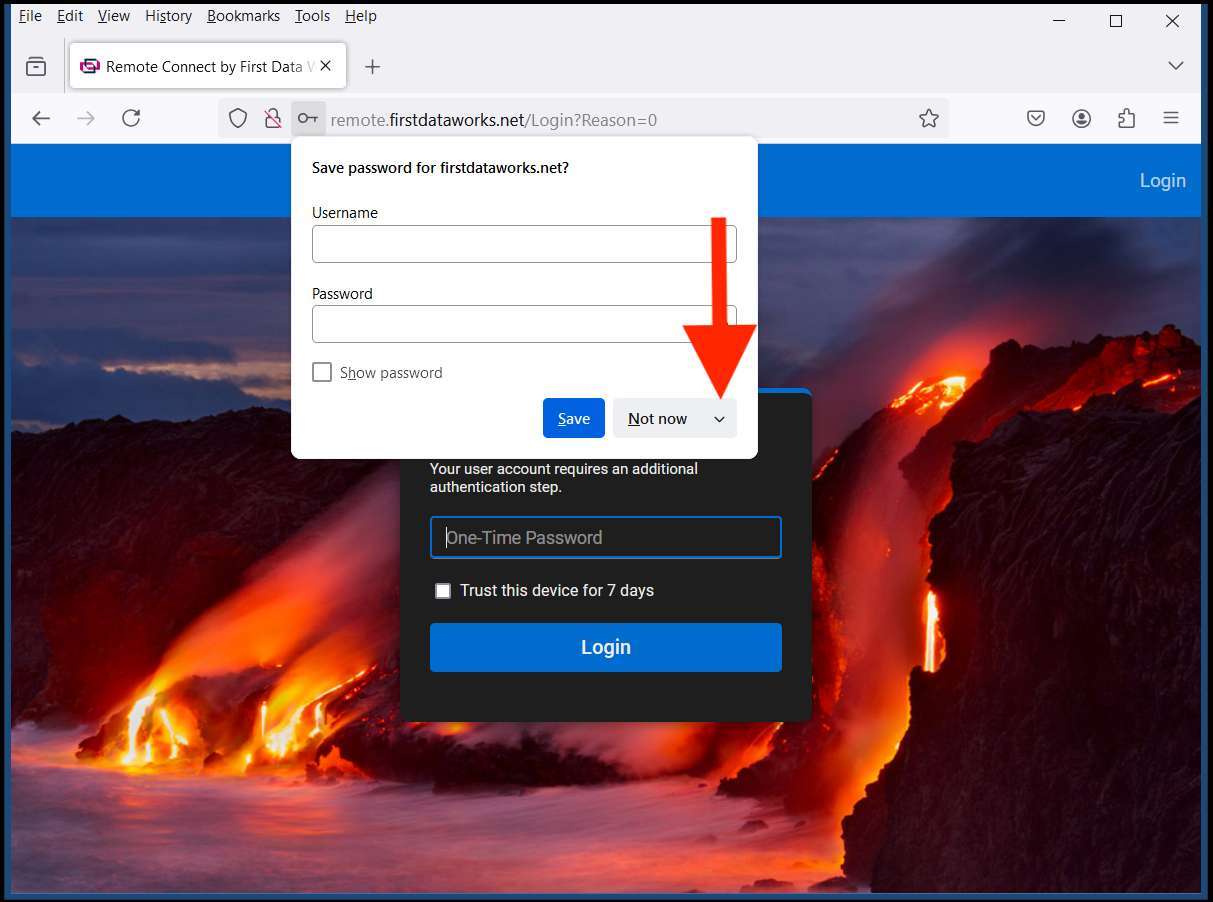
➢ Do not store passwords in your browsers
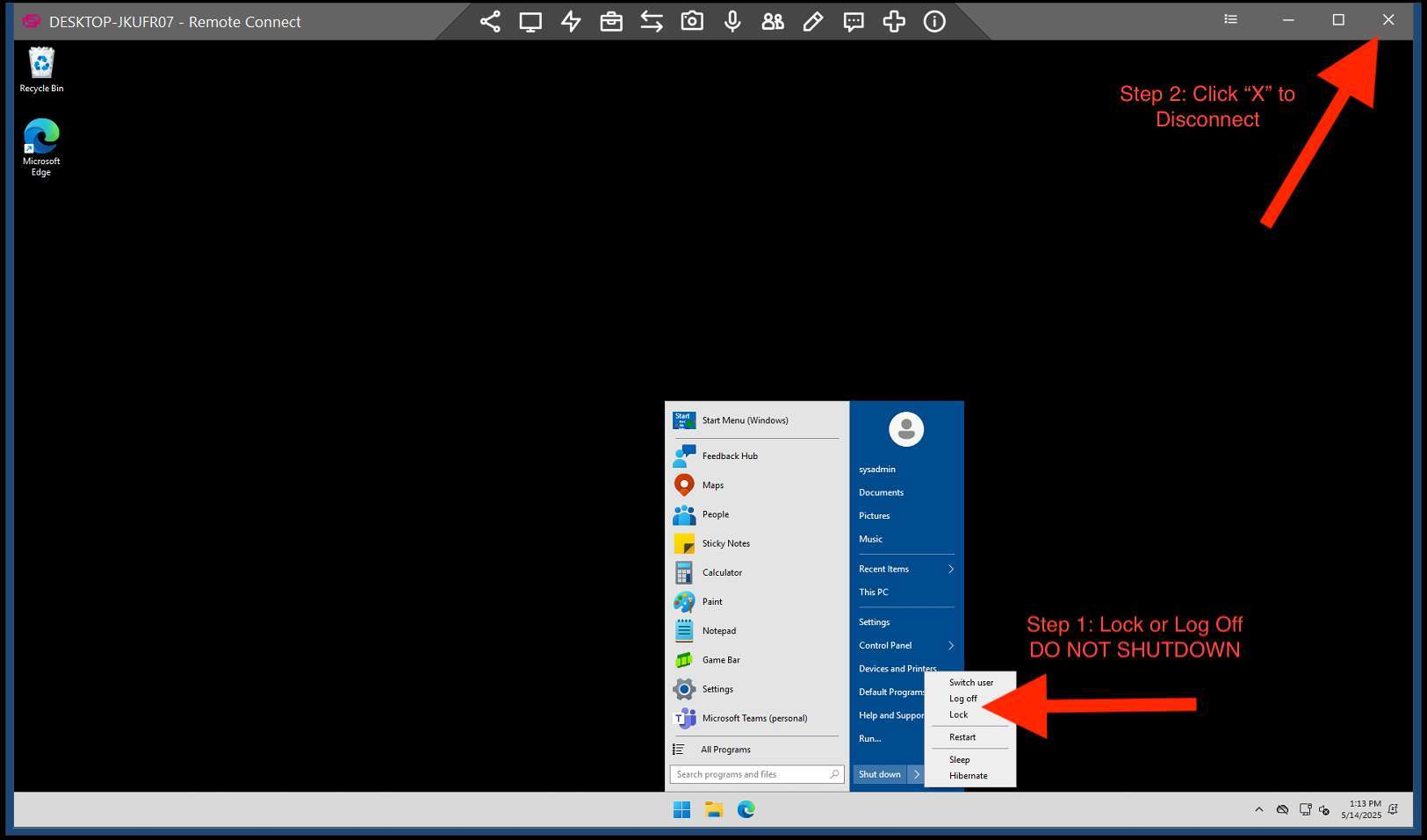
➢ Log off/Lock the remote computer when you are done using it
➢ Never use public Wi-Fi connection to run your remote sessions
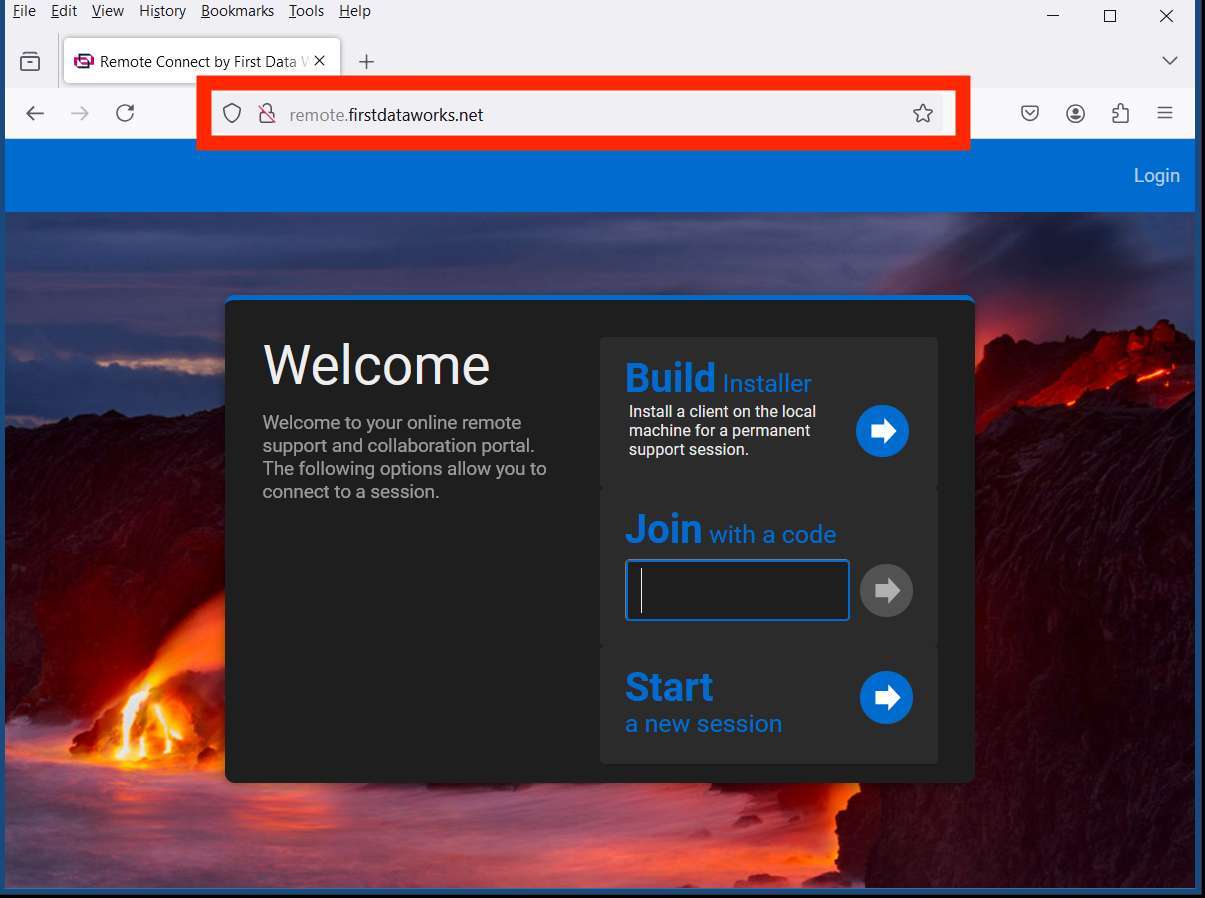
1. Using your computer web browser, navigate to the following URL, remote.firstdataworks.net.
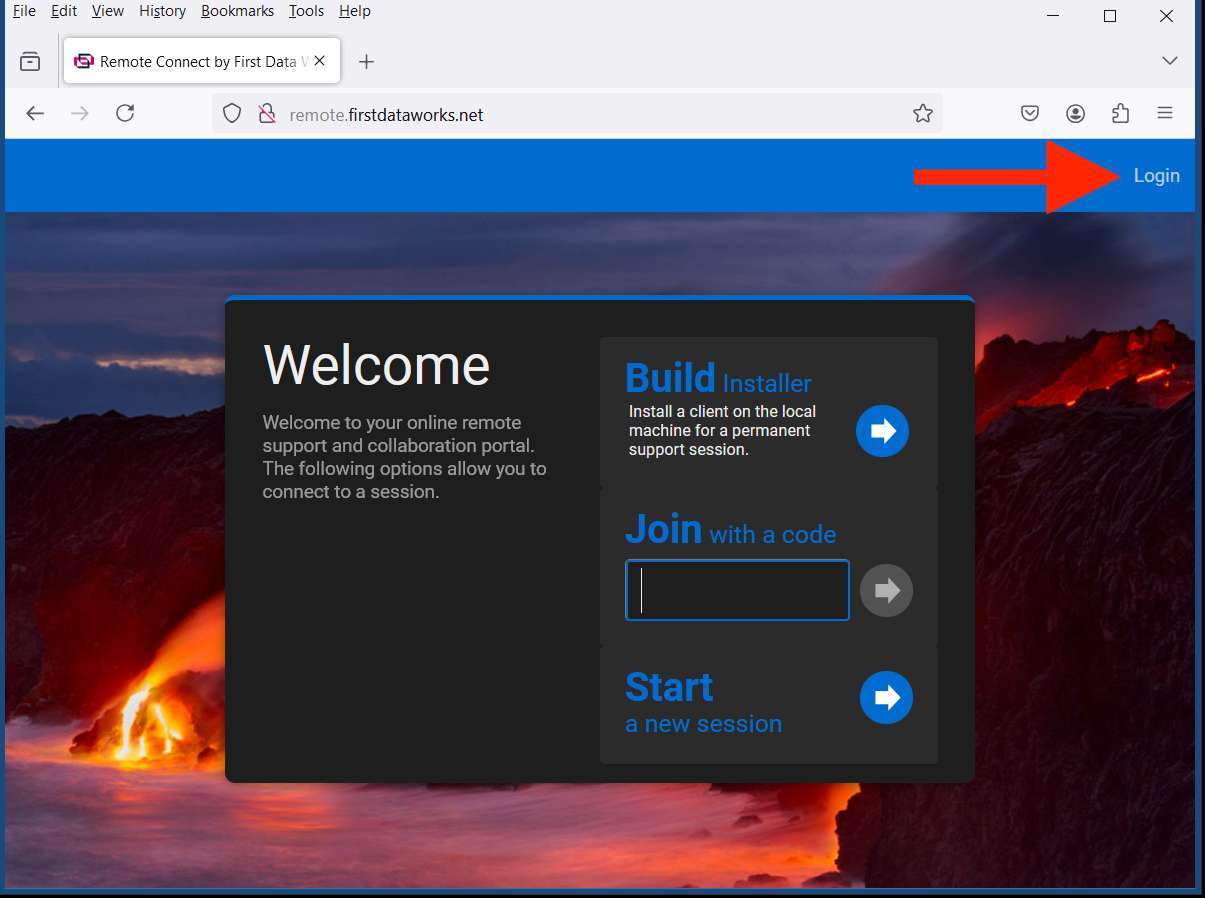
2. Click ‘Login’ on the top right side of the page.
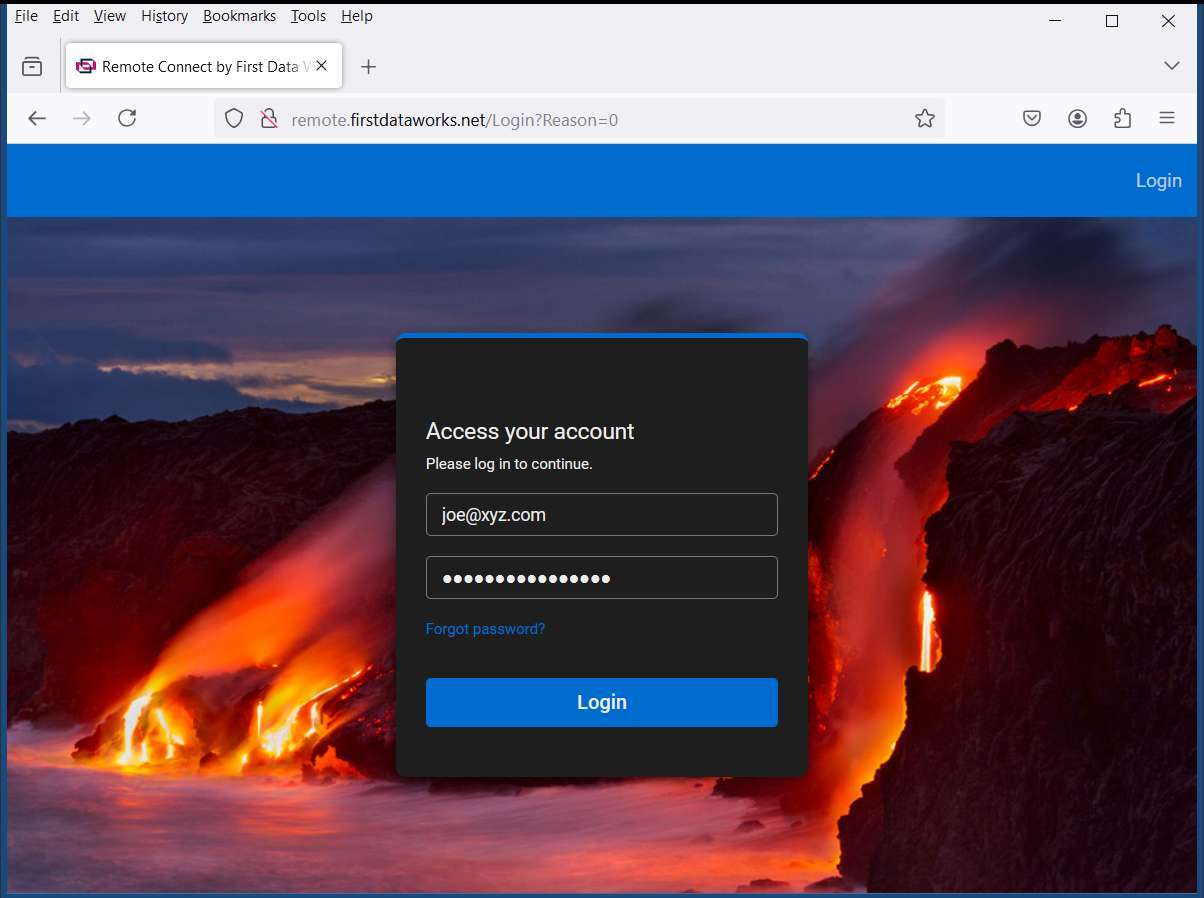
3. Login with your current email address and password.
4. If your browser asks to save your password, click caret next to "Not now" and choose "Never."
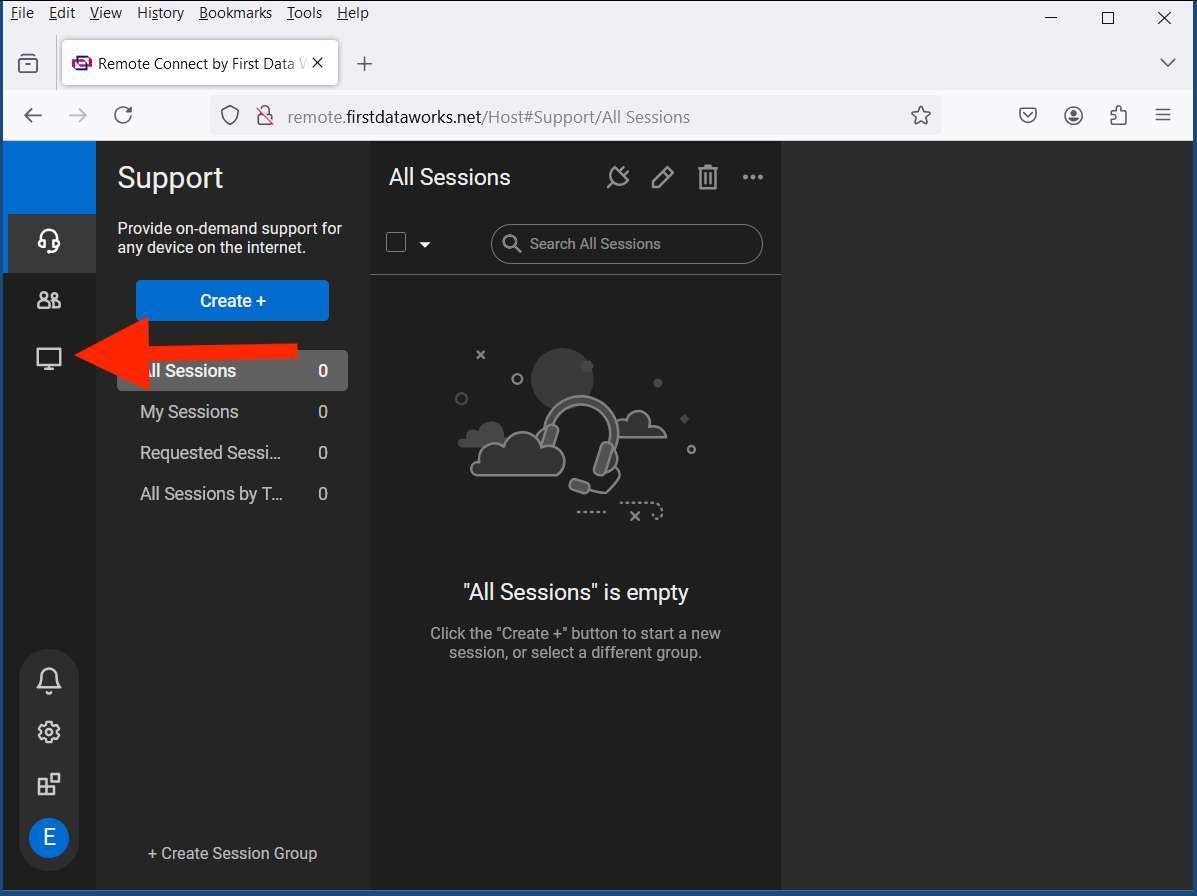
5. Look to the left side of the page and you will see three icons, click the third icon down, the icon that looks like a computer monitor, to get to your list of remote computers.
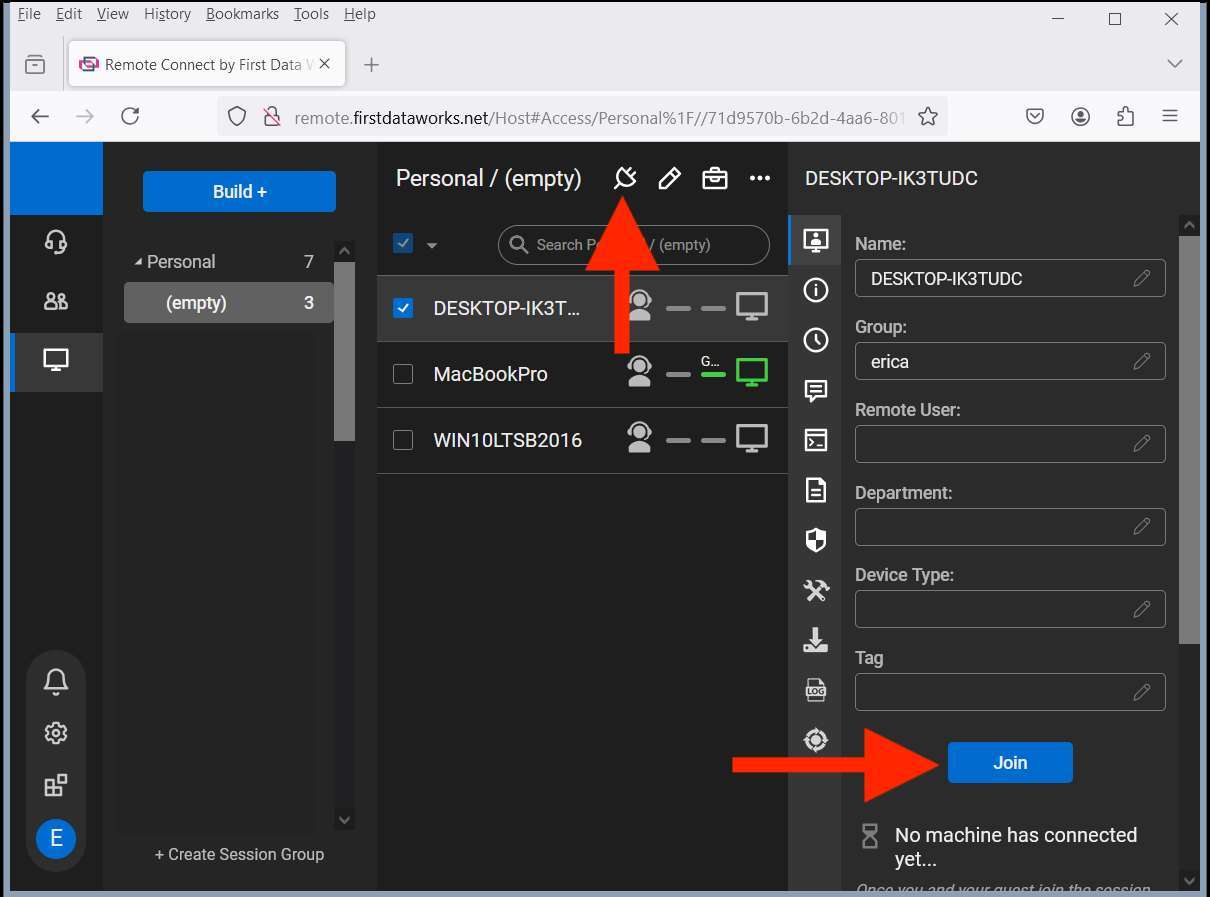
6. Click on the machine you want to connect to and once it is highlighted, click the icon that looks like a plug in the top middle part of the page or click on the ‘Join’ button on the right side, towards the bottom of the page.
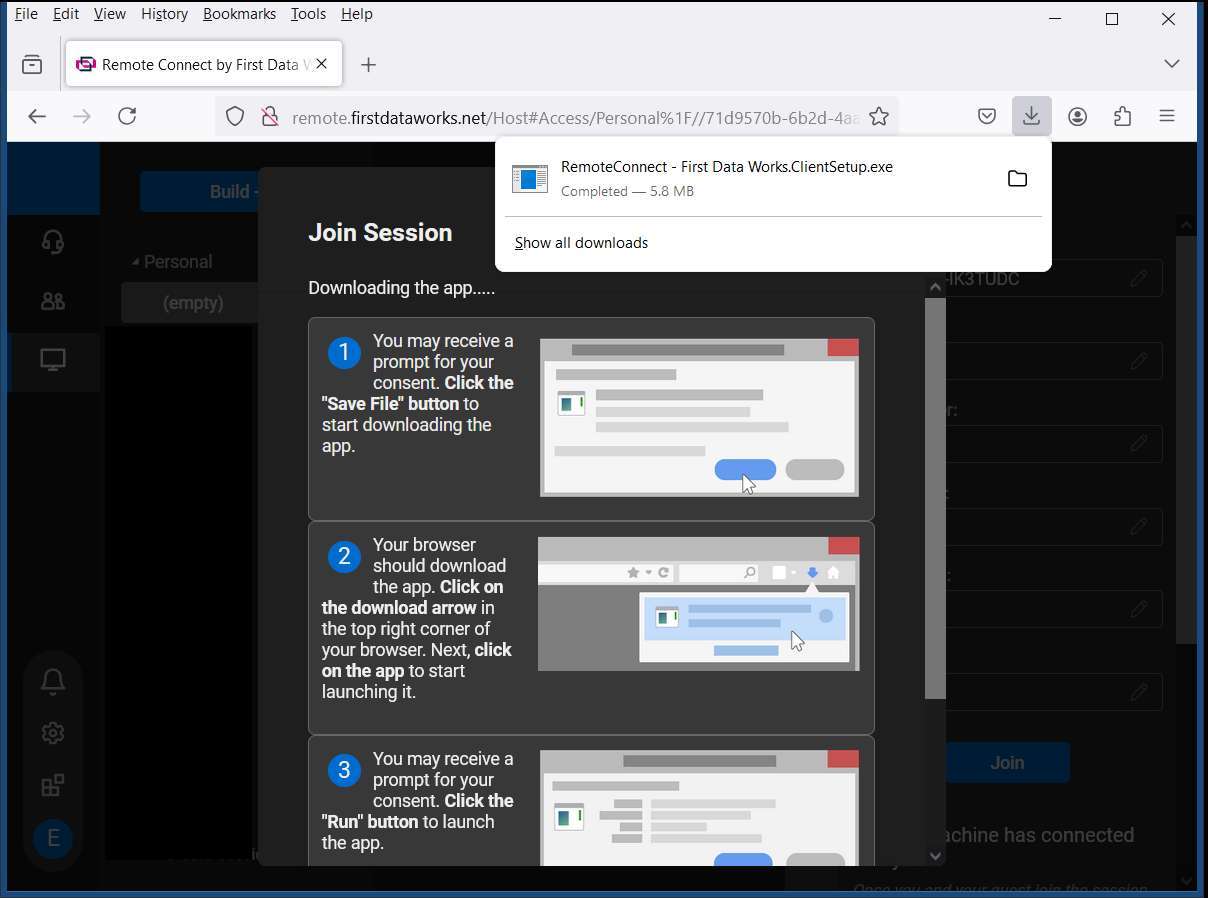
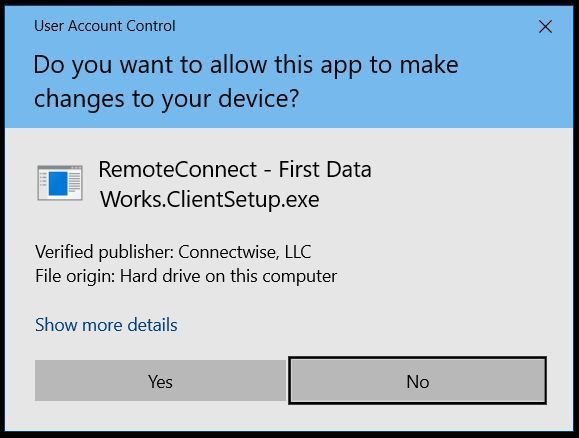
7. The first time you connect to a remote computer, you will need to download and run the client installer file. Run the downloaded file once it finishes downloading and says when the system asks if you want to allow the app to make changes.
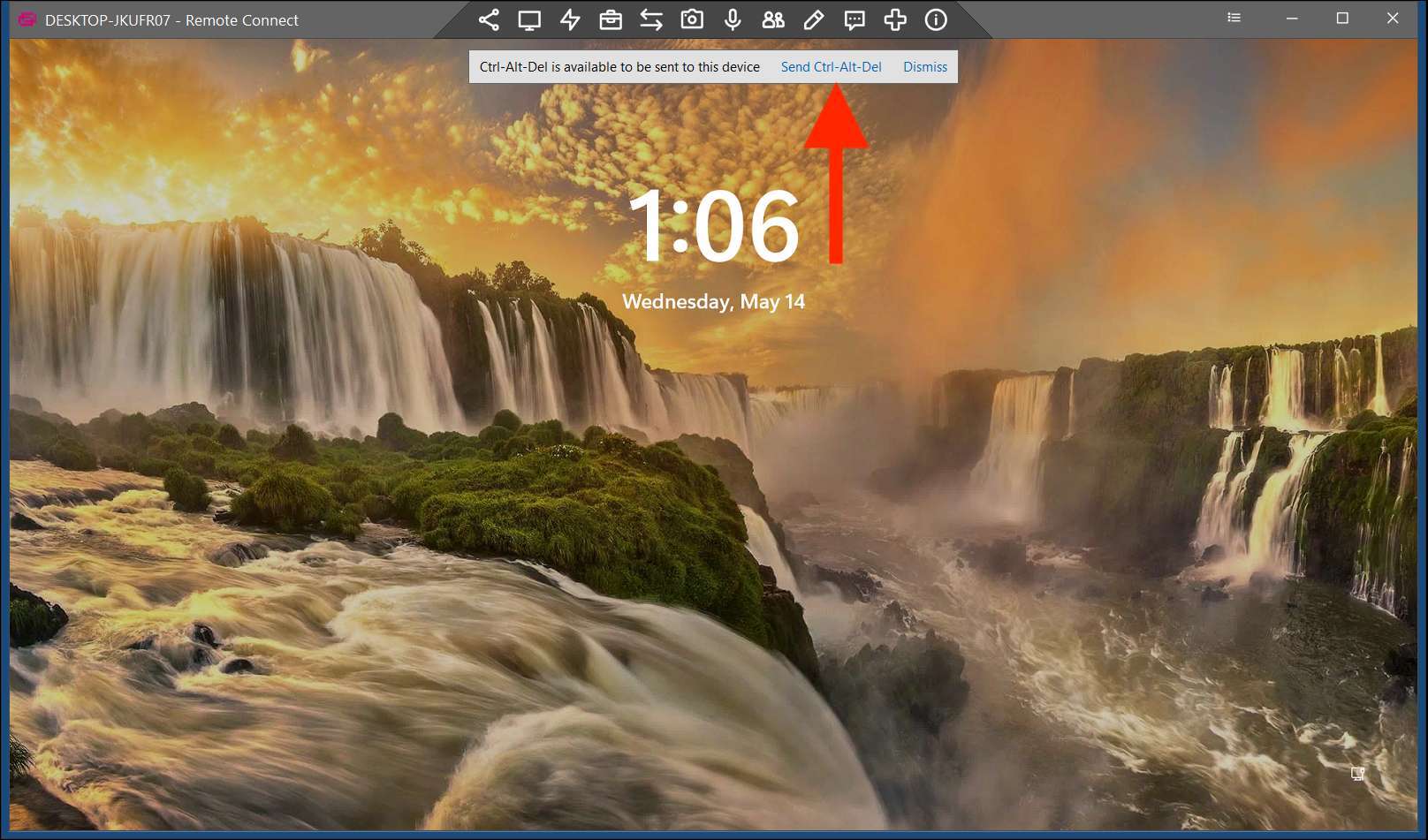
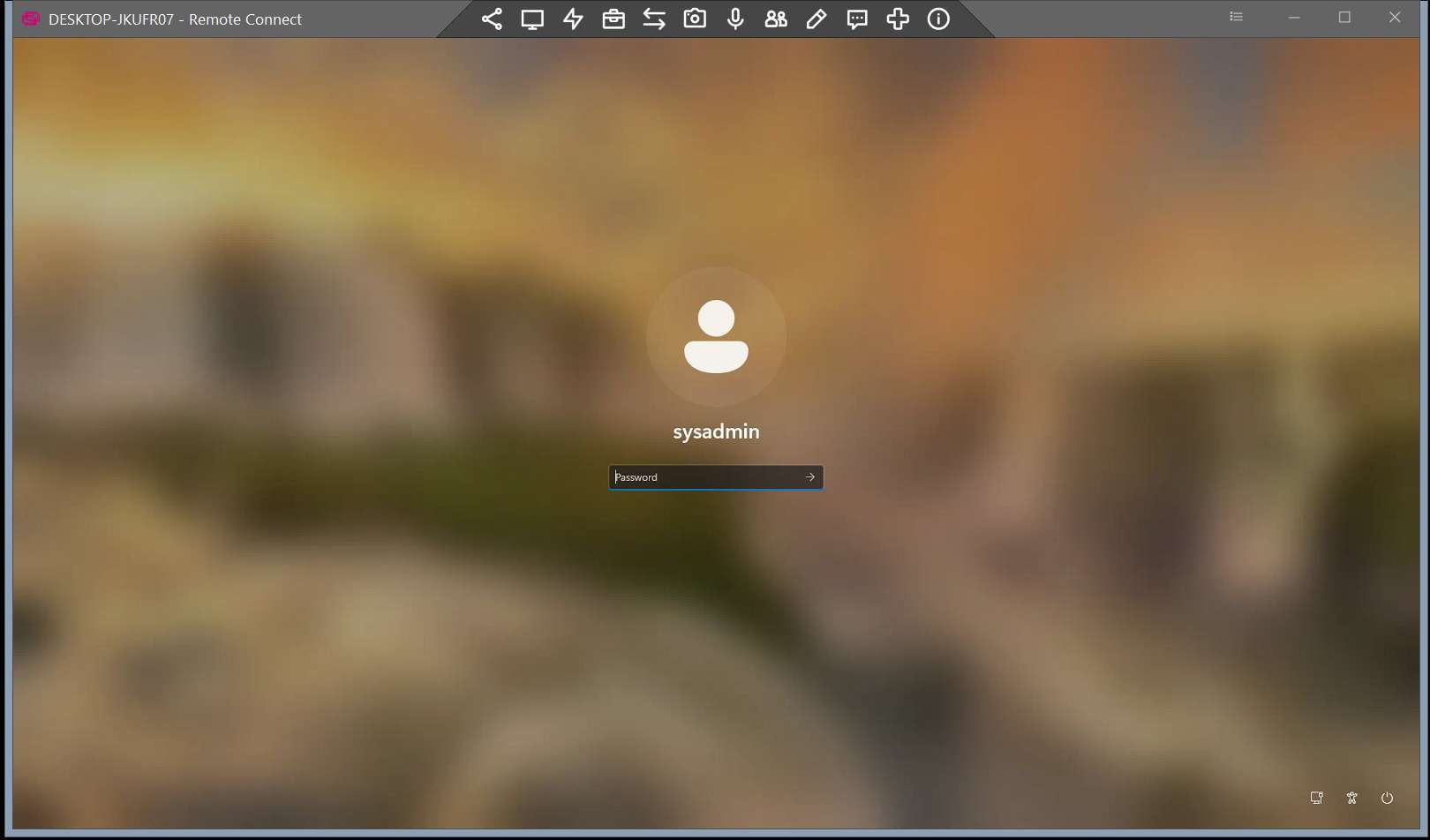
8. Now that you have joined the remote computer session, you will need to click on the link that sends 'CTRL+ALT+DEL' to your remote computer. Then the login screen will appear. This will usually be the same username and password you use to login to your computer while in the office.
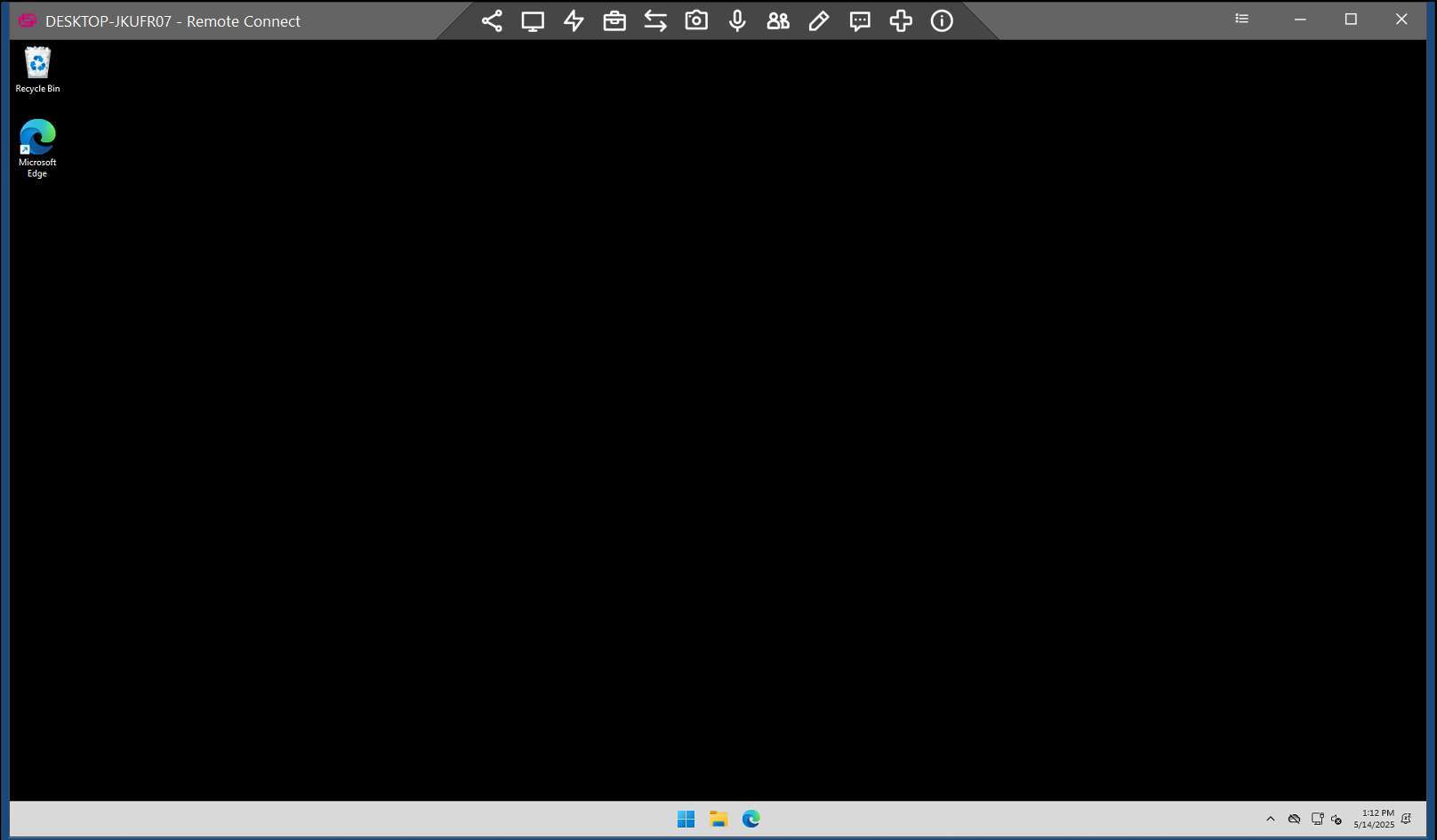
9. From there, you can use the remote computer as you would if it were in front of you.
10. IMPORTANT: Please log off or lock your computer and disconnect when you are done working on it remotely or will be stepping away from your computer. DO NOT SHUTDOWN, SLEEP or HIBERNATE!
➢ If you have any questions or need any assistance, please let us know right away.