
NOTICE: The method below describes how to send a fax without the need for the fax machines itself. This is accomplished using a virtual fax service that enables the sending of specially formatted emails. These emails are converted on the remote end to a fax that is then transmitted to the recipient's fax system.
Why is this important? Because you are sending an email and just like all other emails, you should not include certain items; e.g. financial information, PHI, etc.
If you specifically need to send financial information, other secure information including PHI, etc. please use the 'Send by Web' method. The instructions of which can be found here. eFax Guide - Send by Web
The following is a quick guide on how to send a fax using the Email-to-Fax service directly from your email account.
Simply send an email with the parameters detailed below.
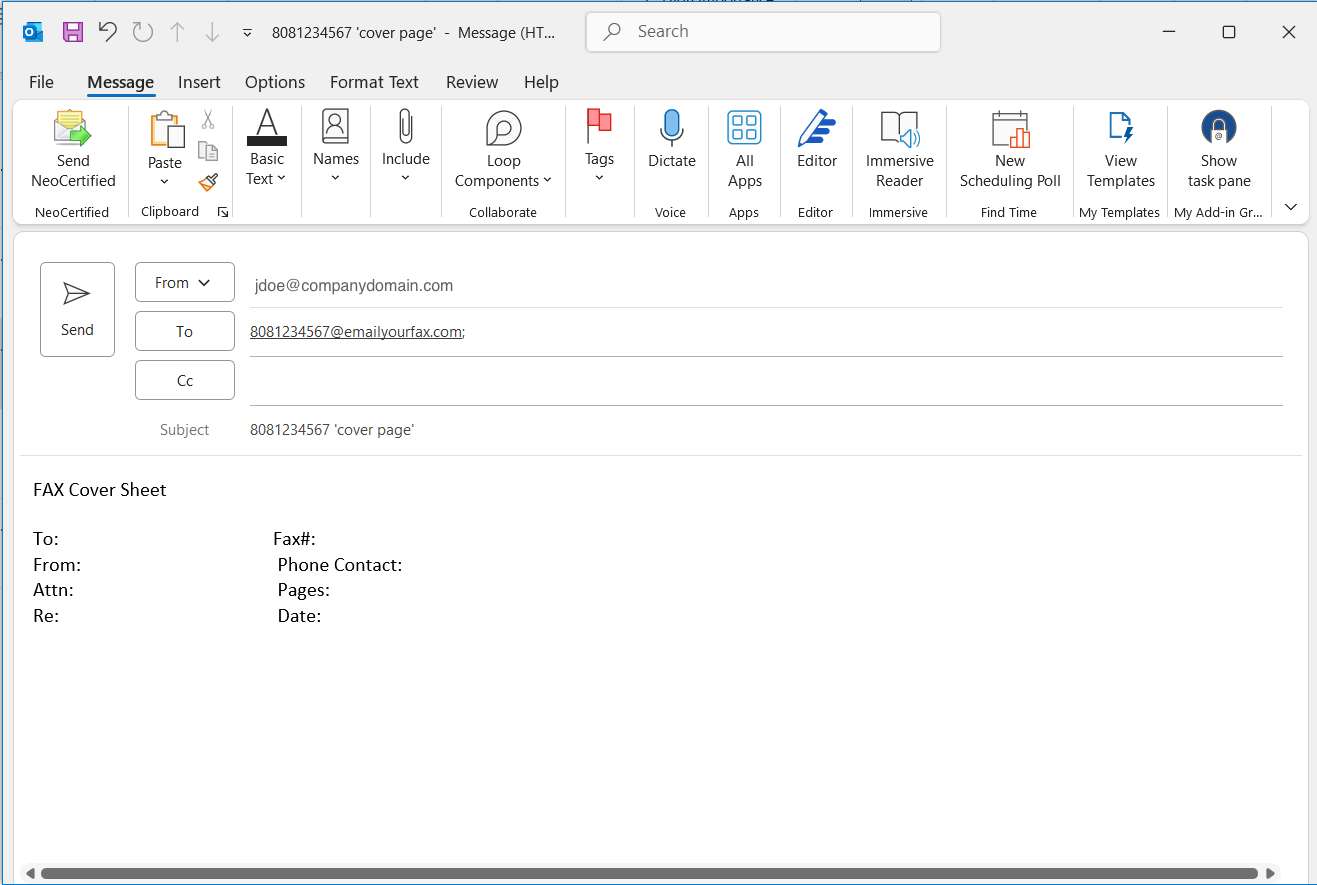
1. Open your email application such as Outlook and start a New email.
2. In the 'To:' field type the fax number you are sending to as an email address.
~ EXAMPLE: '8081234567@emailyourfax.com' replacing '8081234567' with the fax number you wish to send to including the area code.
~ Do not change the @emailyourfax.com domain, this is required.
~ Do not use country codes, international faxing is not supported.
3. In the 'From:' field confirm you are sending the email from your eFax approved email account. If you are not sure, contact us to confirm your approved email account.
4. In the 'Subject:' field type your eFax number.
~ EXAMPLE: '8081234567' replacing '8081234567' with your eFax number including the area code.
~ If you do not know your eFax number please contact us.
5. OPTIONAL: In the Body of the email you can add your cover page info if you did not scan a cover page with your document. Anything you type in the body of the email will become the cover page.
~ IMPORTANT: To use the body of the email as a cover page, you must type the words ‘cover page’ including the single quote marks at the end of the 'Subject:' field.
~ EXAMPLE: 8081234567 'cover page'
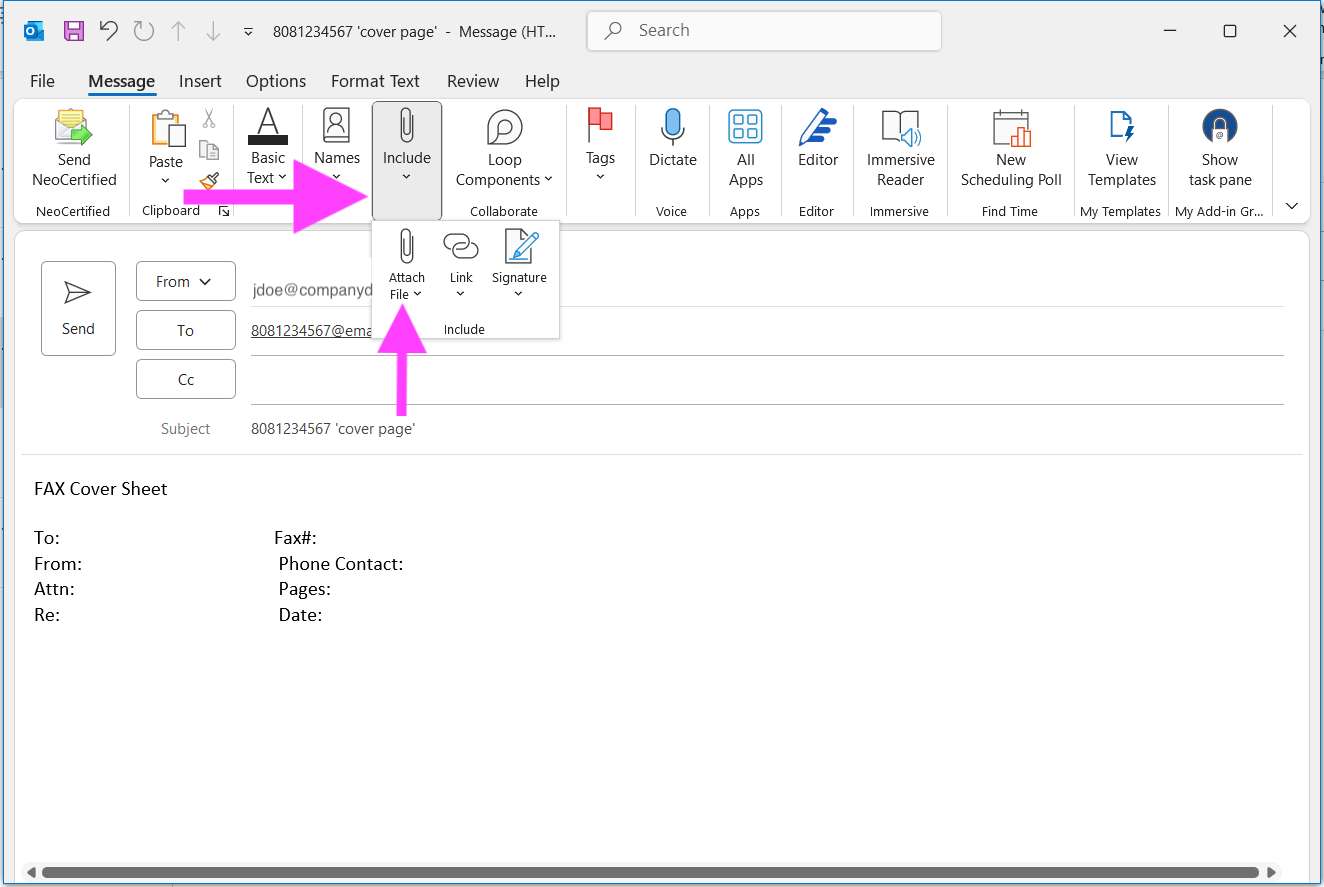
6. ADD the documents you want to fax as Attachments to your email.
~ The Email-to-Fax service supports multiple attached documents, as long as the total size of all attachments is under 20MB.
~ Attachments may be sent in JPG, PDF, Adobe PostScript, TIFF, Microsoft Word, Excel, CSV, HTML & Plain Text formats.
7. SEND your email.
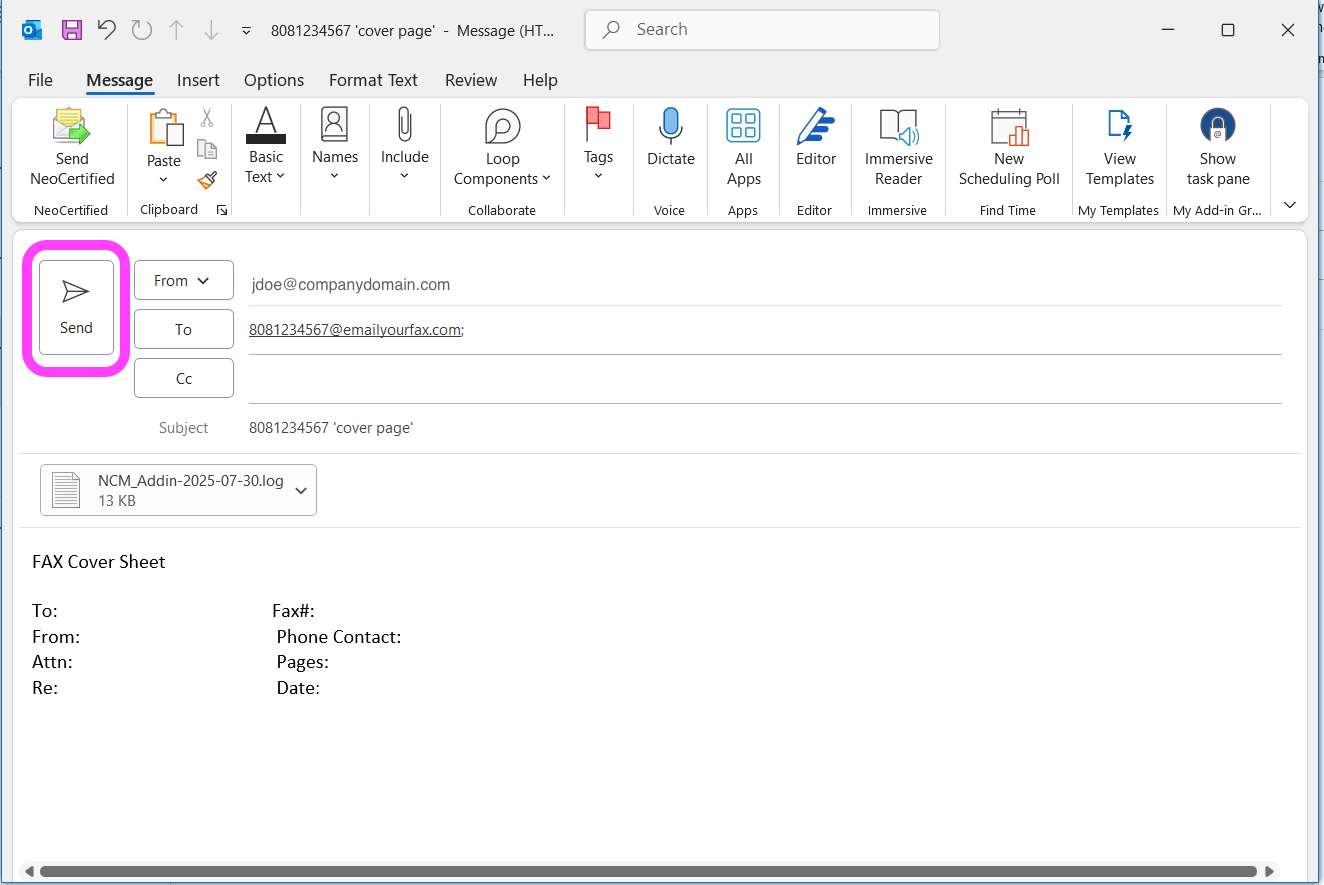
~ Upon submission, the system will reply with a confirmation or rejection email to let you know if your email was successfully submitted into the system.
~ You will get a second email notification when the email-to-fax has been successfully delivered to the fax number you typed in step 2.
---
Need Help?
We hope you enjoy your new eFax system.
If you run into issues or have questions, please let us know.
---